
How to Set Up and Use Third Party Billing
How to Set Up and Use Third Party Billing
Third Party Billing lets you charge shipping costs to a different carrier account instead of your own. This is commonly used when:
- A customer or partner is responsible for their own shipping costs
- The receiving party wants to pay for shipping
- You ship on behalf of another company that has their own carrier account
Adding Third Party Billing to a Shipment
The quickest way to use third party billing is to enter the details directly on the Ship page. You don't need to save the account in Settings first.
- On the Ship page, fill in your From and To addresses and Package Details as usual.
- Toggle the Billing Party switch to enable third party billing.
- Select the billing type: Third Party or Receiver.
- Fill in the billing details:
- Account Number — The carrier account number provided by the third party.
- Carrier — Must match the carrier you're shipping with.
- Country — The country where the billing account is registered.
- Postal Code — The postal code on file with the carrier (see note below).
- Optionally fill in Name, Address, City, and Phone if the carrier requires them for verification.
- Continue with rate selection and label creation as normal.
If you've already saved billing accounts, you can select one from the Billing Account dropdown instead of typing the details manually. The dropdown only shows accounts that match the carrier on your shipment.
The account is saved automatically. After the shipment is created, the billing details you entered will appear in your Settings > Third Party Billing list so you can reuse them next time.
Tip: If you modify any field on an account selected from the dropdown, ShipBoss treats it as a new account. The original saved account is not changed.
About Postal Codes
Postal codes are technically optional when entering third party billing details in ShipBoss. However, most carriers require the postal code to validate the billing account, and the shipment may be rejected by the carrier if it's missing or incorrect.
Best practice: Always include the postal code exactly as the carrier has it on file. This is the most common reason third party billing is rejected.
Saving Billing Accounts in Settings
If you frequently ship with the same third party accounts, you can save them in your settings for quick reuse.
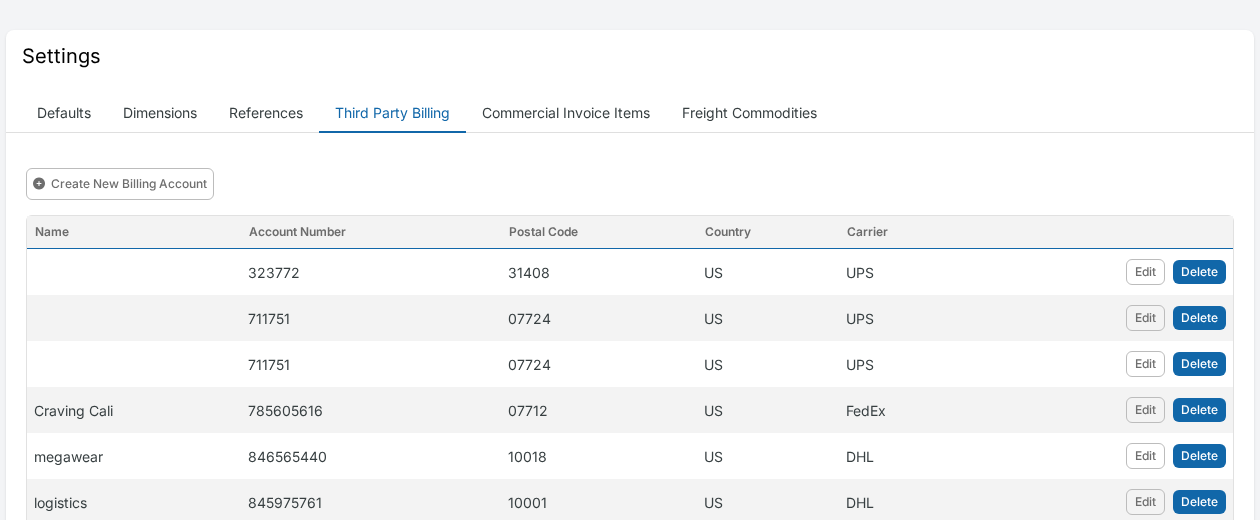
- Click Settings in the top navigation bar.
- Select the Third Party Billing tab.
- Click Create New Billing Account.
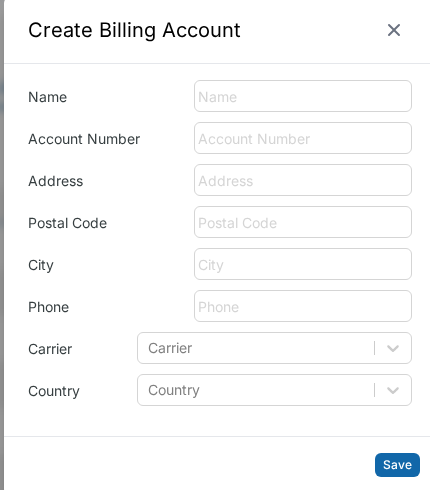
- Fill in the billing account details:
Field | Required | Notes |
|---|---|---|
Account Number | Yes | The carrier account number to bill |
Carrier | Yes | Must match the carrier on your shipment (UPS, FedEx, DHL, etc.) |
Country | Yes | Country where the billing account is registered |
Postal Code | Recommended | Carriers often require this for validation — always include it |
Name | No | A label to identify this account (e.g., "Acme Corp UPS") |
Address | No | Street address on the billing account (max 35 characters) |
City | No | City name (max 30 characters) |
Phone | No | Contact phone number (max 15 characters) |
- Click Save.
Saved accounts appear in the Billing Account dropdown when creating shipments. Accounts you enter directly on the Ship page are also saved here automatically.
Setting a Default Billing Account
If you use the same third party billing account on most shipments, set it as your default:
- Go to Settings > Defaults tab.
- Scroll down to the General Settings section.
- Find the Default Third Party Billing row.
- Select your preferred billing account from the dropdown.
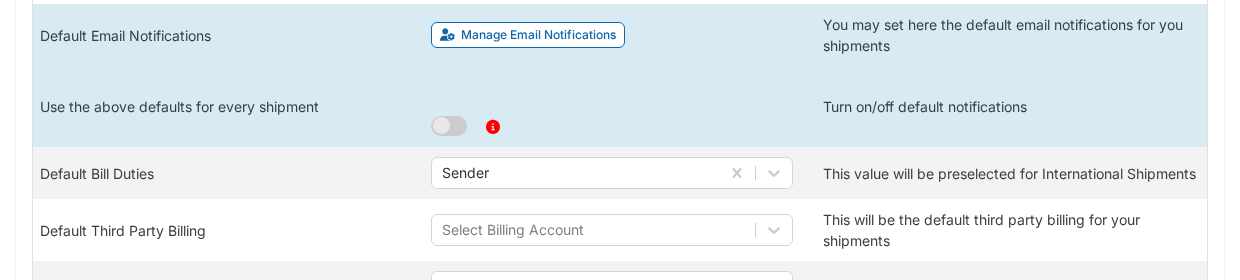
Once set, this account will automatically populate whenever you enable third party billing on a new shipment.
Billing Types
ShipBoss supports two billing types:
Type | What It Covers | When to Use |
|---|---|---|
Transportation | Shipping and freight costs | Most common — the third party pays for shipping |
Duties | Customs and duty charges | International shipments — the third party covers import duties and taxes |
You can assign different accounts for transportation and duties on the same shipment. For example, the receiver pays for shipping while a customs broker pays for duties.
Managing Billing Accounts
Go to Settings > Third Party Billing to manage your accounts:
- Edit — Update any account's details. If the account was used on past shipments, ShipBoss creates a new record to preserve your shipment history.
- Delete — Remove an account from the list. Past shipments that used this account retain the original billing details.
Accounts created directly on the Ship page also appear here and can be edited or deleted the same way.
Bulk Uploads
When importing shipments via CSV or Excel in Bulk Shipments, include these columns for third party billing:
Column | Required | Example |
|---|---|---|
Type | Yes | |
Account Number | Yes | |
Postal Code | Yes | |
Country Code | Yes | |
If a matching billing account already exists, it will be reused. Otherwise, a new account is created automatically.
Troubleshooting
The billing account dropdown is empty
- Make sure you have at least one saved billing account — either from Settings > Third Party Billing or from a previous shipment.
- The dropdown only shows accounts matching the carrier on your shipment. A FedEx account won't appear when shipping via UPS.
The Billing Party toggle is not visible
- Not all carrier services support third party billing. If the toggle doesn't appear, the selected service may not offer this option.
The carrier rejected the third party account
- Verify the account number and postal code match exactly what the carrier has on file. This is the most common cause of rejection.
- Confirm the account is active and authorized for third party billing by contacting the account holder.
- Some carriers also require the address to match their records.
Changes to an account aren't showing on old shipments
- This is by design. Editing a billing account creates an updated record for future shipments while preserving the original details on past shipments.
I entered billing details on the Ship page but don't see them in Settings
- Accounts are saved after the shipment is successfully created. Complete the shipment, then check Settings > Third Party Billing.
If you need further assistance, contact CustomerService@corporatefreightsavers.com or use the in-app chat.
Updated on: 19/02/2026
Thank you!